









































New to KubeDB? Please start here.
Visualize PostgreSQL Metrics with Grafana Dashboard
KubeDB exposes PostgreSQL metrics through a sidecar exporter. Once Prometheus scrapes those metrics, you can visualize them in Grafana using a pre-built KubeDB dashboard. This tutorial walks through the full setup: deploying the monitoring stack, enabling monitoring on a PostgreSQL instance, and importing the Grafana dashboard.
Before You Begin
You need a Kubernetes cluster with
kubectlconfigured. If you do not already have a cluster, you can create one by using kind.KubeDB must be installed in your cluster with
kubedb-metricsenabled. Follow the setup guide here and make sure to include the flag below during installation:--set kubedb-metrics.enabled=truekubedb-metricscreatesMetricsConfigurationobjects for each database type, which Panopticon (Step 2) uses to expose metrics to Prometheus.To keep monitoring resources isolated, we use a separate
monitoringnamespace and deploy the database in thedemonamespace.$ kubectl create ns monitoring namespace/monitoring created $ kubectl create ns demo namespace/demo created
Note: YAML files used in this tutorial are stored in docs/examples/postgres/monitoring folder in GitHub repository kubedb/docs.
Step 1: Deploy kube-prometheus-stack
kube-prometheus-stack installs Prometheus, Prometheus Operator, Alertmanager, and Grafana together. This is the recommended way to get the full monitoring stack on Kubernetes.
Add the prometheus-community Helm repo and install:
$ helm repo add prometheus-community https://prometheus-community.github.io/helm-charts
$ helm repo update

$ helm upgrade --install prometheus prometheus-community/kube-prometheus-stack \
  --namespace monitoring \
  --set grafana.image.tag=7.5.5
Wait for all pods to be ready:
$ kubectl get pods -n monitoring
NAME                                                   READY   STATUS    RESTARTS   AGE
alertmanager-prometheus-kube-prometheus-alertmanager-0 2/2     Running   0          2m
prometheus-grafana-xxxx                                3/3     Running   0          2m
prometheus-kube-prometheus-operator-xxxx               1/1     Running   0          2m
prometheus-kube-prometheus-prometheus-0                2/2     Running   0          2m
prometheus-kube-state-metrics-xxxx                     1/1     Running   0          2m
Find the serviceMonitorSelector label that Prometheus uses to pick up ServiceMonitor objects. You will need this label when enabling monitoring on the PostgreSQL instance.
$ kubectl get prometheus -n monitoring -o jsonpath='{.items[0].spec.serviceMonitorSelector}'
{"matchLabels":{"release":"prometheus"}}
The label is release: prometheus.
Step 2: Install Panopticon
Panopticon is the Appscode operator that reads MetricsConfiguration objects created by kubedb-metrics and exposes them to Prometheus. It must be installed before enabling kubedb-metrics.
$ helm repo add appscode https://charts.appscode.com/stable/
$ helm repo update

$ helm upgrade --install panopticon appscode/panopticon \
  --version v2026.4.30 \
  --namespace kubeops --create-namespace \
  --set monitoring.enabled=true \
  --set monitoring.agent=prometheus.io/operator \
  --set monitoring.serviceMonitor.labels.release=prometheus \
  --set-file license=/path/to/kubedb-license.txt \
  --wait --timeout 5m0s
Verify panopticon is running:
$ kubectl get pods -n kubeops
NAME                          READY   STATUS    RESTARTS   AGE
panopticon-xxxx               1/1     Running   0          1m
Step 3: Deploy PostgreSQL with Monitoring Enabled
Below is the PostgreSQL object with monitoring configured to use Prometheus Operator.
apiVersion: kubedb.com/v1
kind: Postgres
metadata:
  name: pg-grafana-demo
  namespace: demo
spec:
  version: "13.13"
  deletionPolicy: WipeOut
  storage:
    storageClassName: "standard"
    accessModes:
    - ReadWriteOnce
    resources:
      requests:
        storage: 1Gi
  monitor:
    agent: prometheus.io/operator
    prometheus:
      serviceMonitor:
        labels:
          release: prometheus
        interval: 10s
Here,
monitor.agent: prometheus.io/operatortells KubeDB to create aServiceMonitorfor this instance.monitor.prometheus.serviceMonitor.labelsmust match theserviceMonitorSelectorlabel of your Prometheus (release: prometheus).monitor.prometheus.serviceMonitor.intervalsets the scrape interval to 10 seconds.
Create the PostgreSQL instance:
$ kubectl create -f https://github.com/kubedb/docs/raw/v2026.4.27/docs/examples/postgres/monitoring/coreos-prom-postgres.yaml
postgres.kubedb.com/pg-grafana-demo created
Wait for it to be Ready:
$ kubectl get postgres -n demo pg-grafana-demo
NAME              VERSION   STATUS   AGE
pg-grafana-demo   13.13     Ready    2m
KubeDB creates a stats service named {postgres-name}-stats for the exporter:
$ kubectl get svc -n demo --selector="app.kubernetes.io/instance=pg-grafana-demo"
NAME                        TYPE        CLUSTER-IP      EXTERNAL-IP   PORT(S)     AGE
pg-grafana-demo             ClusterIP   10.96.10.1      <none>        5432/TCP    2m
pg-grafana-demo-replicas    ClusterIP   10.96.10.2      <none>        5432/TCP    2m
pg-grafana-demo-stats       ClusterIP   10.96.10.3      <none>        56790/TCP   2m
KubeDB also creates a ServiceMonitor in the demo namespace:
$ kubectl get servicemonitor -n demo
NAME                        AGE
pg-grafana-demo-stats       2m
Verify it carries the correct label:
$ kubectl get servicemonitor -n demo pg-grafana-demo-stats -o jsonpath='{.metadata.labels}'
{"release":"prometheus", ...}
Step 4: Verify Prometheus is Scraping
Port-forward the Prometheus pod:
$ kubectl port-forward -n monitoring \
  prometheus-prometheus-kube-prometheus-prometheus-0 9090
Forwarding from 127.0.0.1:9090 -> 9090
Forwarding from [::1]:9090 -> 9090
Open http://localhost:9090/targets in your browser. Look for an entry whose service label matches pg-grafana-demo-stats. Its state should be UP.
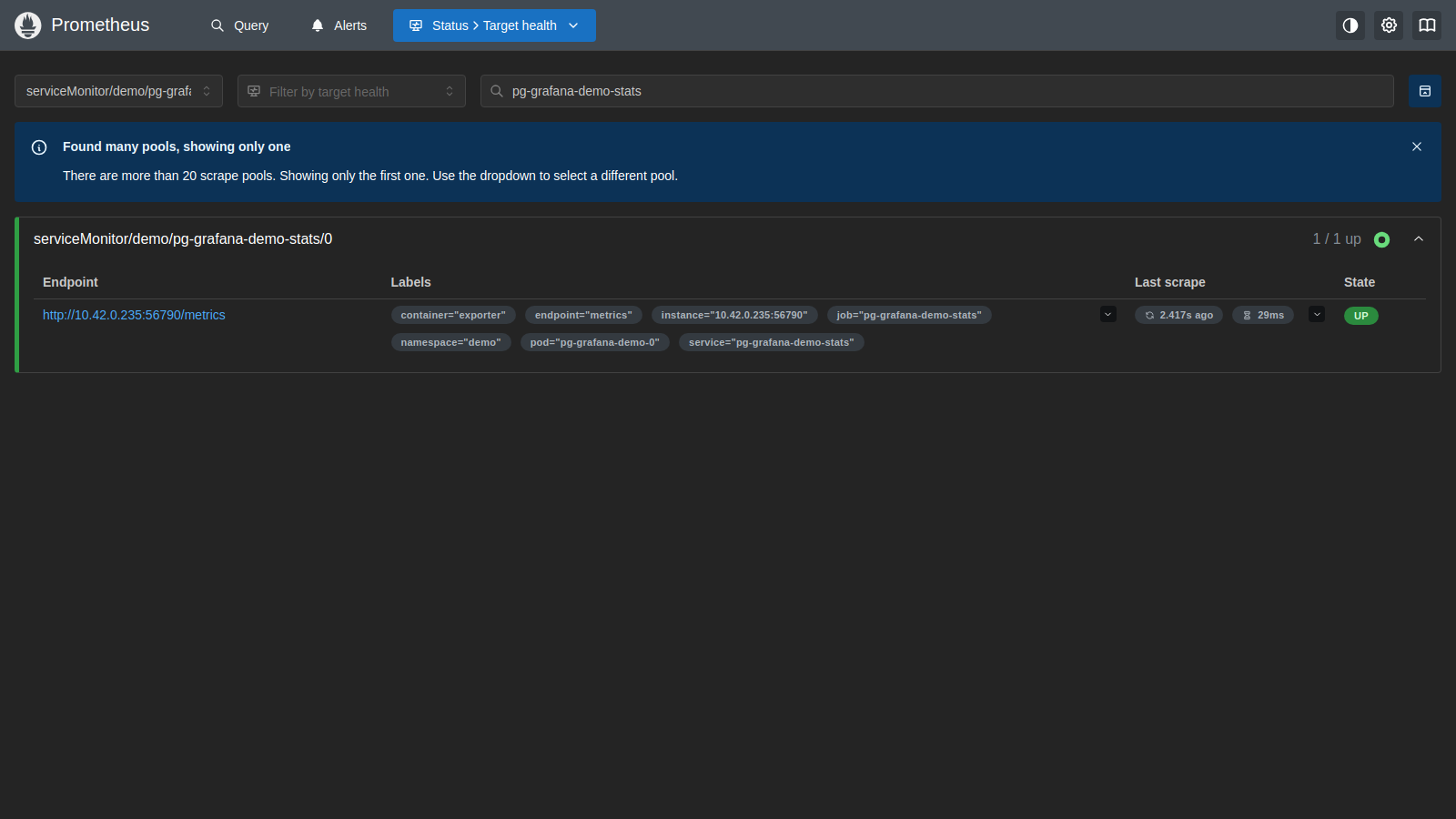
If the target is missing, check that the ServiceMonitor label (release: prometheus) matches the Prometheus serviceMonitorSelector.
Step 5: Access Grafana
Port-forward the Grafana service:
$ kubectl port-forward -n monitoring svc/prometheus-grafana 3000:80
Forwarding from 127.0.0.1:3000 -> 80
Open http://localhost:3000. The username is admin. Retrieve the auto-generated password from the secret:
$ kubectl get secret -n monitoring prometheus-grafana \
  -o jsonpath='{.data.admin-password}' | base64 -d
| Field | Value |
|---|---|
| Username | admin |
| Password | output of the command above |
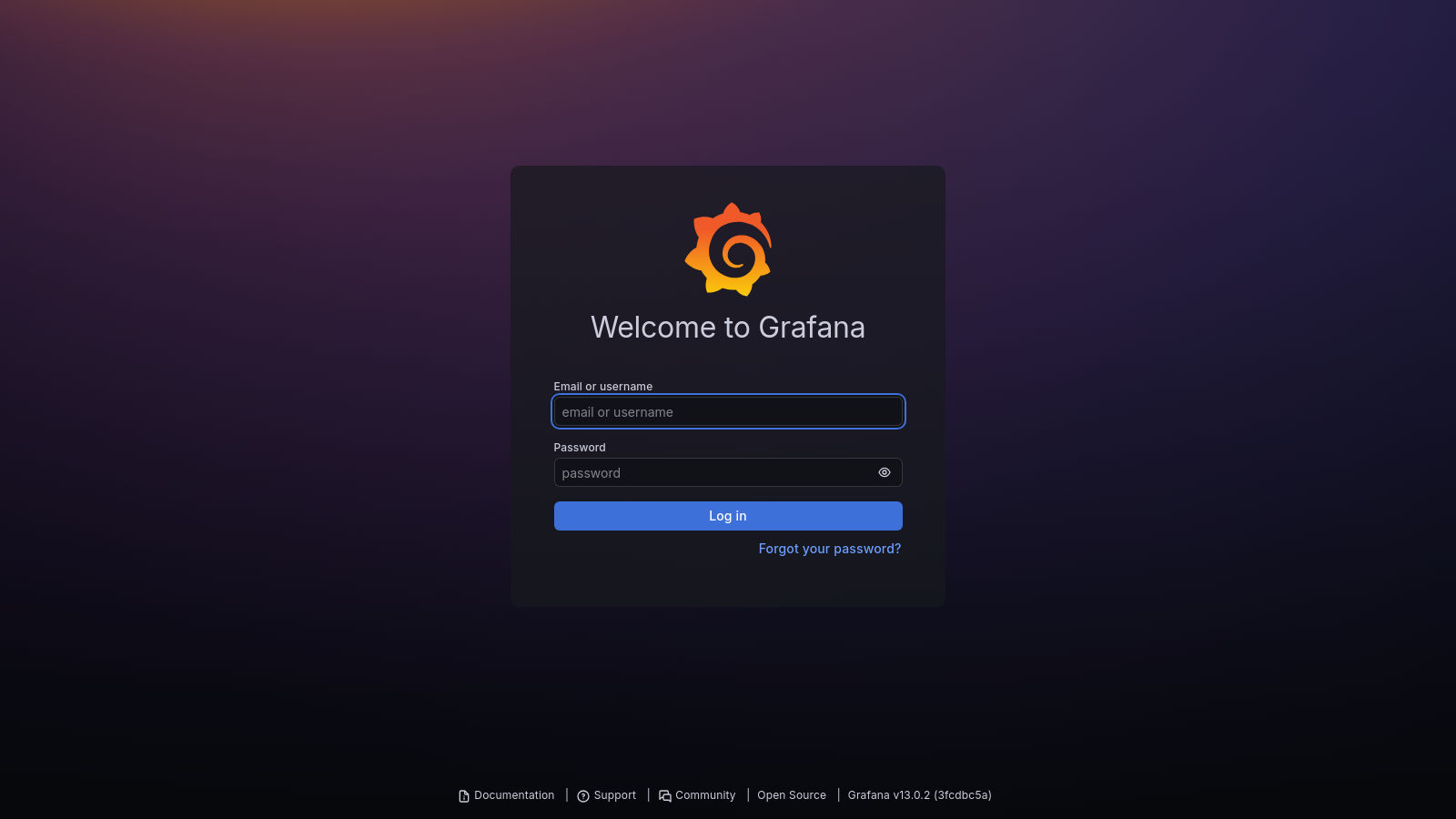
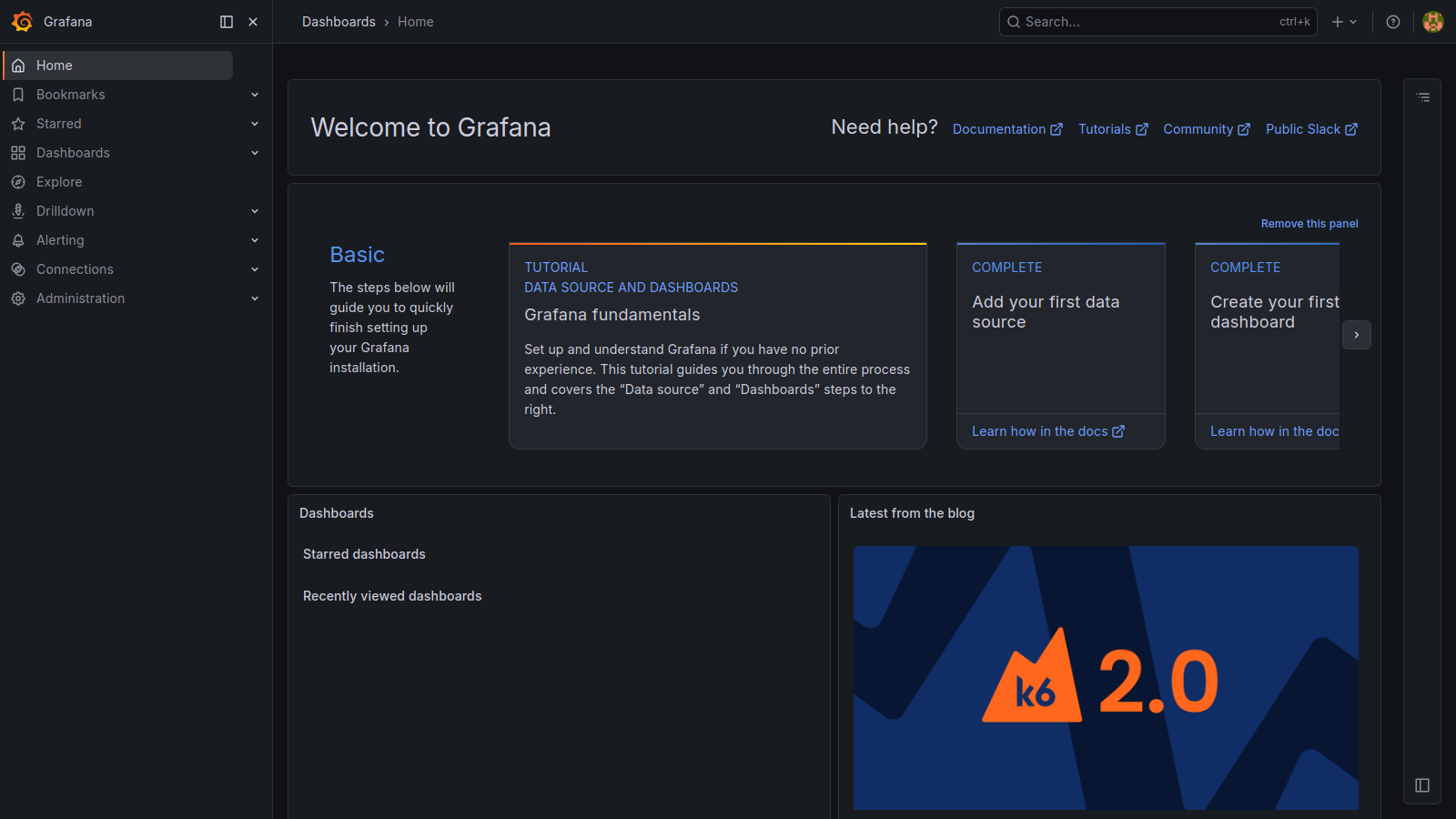
After a successful login you will see the Grafana home page:
Step 6: Configure Prometheus as a Data Source
If you installed Grafana via kube-prometheus-stack, Prometheus is already configured as the default data source — skip to Step 7.
For a standalone Grafana installation:
Go to Connections → Data sources → Add new data source.
Select Prometheus.
Set the URL to your Prometheus service:
http://prometheus-operated.monitoring.svc:9090Click Save & test. You should see
Data source is working.
Step 7: Import KubeDB PostgreSQL Dashboard
The KubeDB Postgres dashboards are distributed as JSON files. Each JSON file is a complete dashboard definition — panels, queries, variables, and layout — that Grafana loads in one shot. Without importing, you would have to build every panel and write every PromQL query by hand. Importing lets you skip that entirely.
Three dashboards are available. Download all three JSON files from the appscode/grafana-dashboards repository (postgres/ folder):
| File | Dashboard |
|---|---|
postgres_summary_dashboard.json | KubeDB / Postgres / Summary |
postgres_pods_dashboard.json | KubeDB / Postgres / Pod |
postgres_databases_dashboard.json | KubeDB / Postgres / Database |
A Perses-format version of each dashboard (
*-perses.json) is also available in the same folder if you use Perses instead of Grafana.
Import steps (repeat for each of the three files):
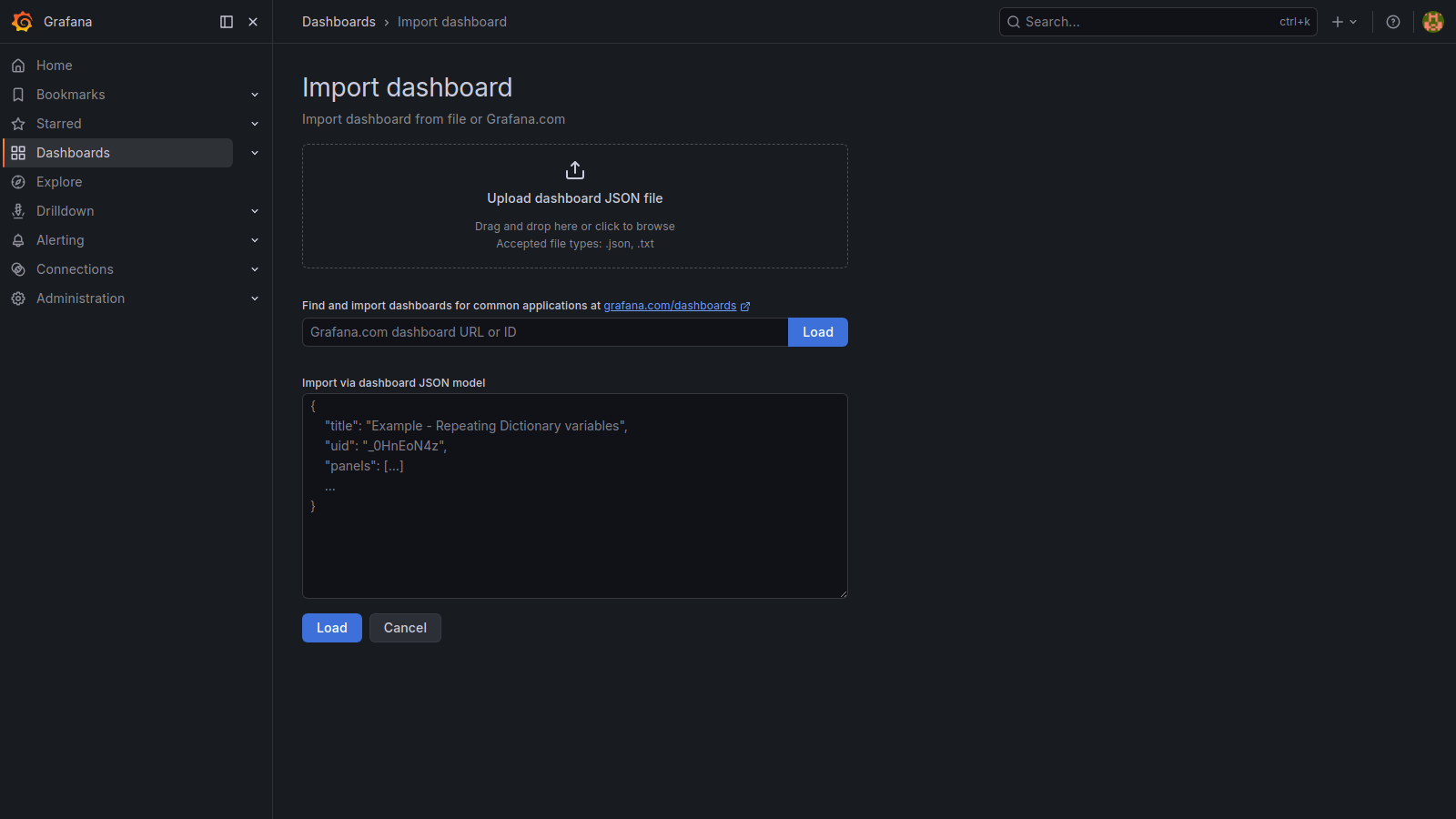
- In Grafana, click the
+icon in the left sidebar. - Select
Importfrom the menu. - Click
Upload JSON fileand select one of the downloaded.jsonfiles. - In the
Prometheusdropdown that appears, select your Prometheus data source. - Click
Import.
The import page looks like this — click Upload dashboard JSON file to select the file:
After importing all three files, they will appear under Dashboards in the left sidebar.
| Dashboard Name | Description |
|---|---|
| KubeDB / Postgres / Summary | Overall summary: status, connections, replication lag, CPU, memory, storage, network |
| KubeDB / Postgres / Pod | Per-pod metrics: server role, connections, CPU/memory usage, PostgreSQL settings |
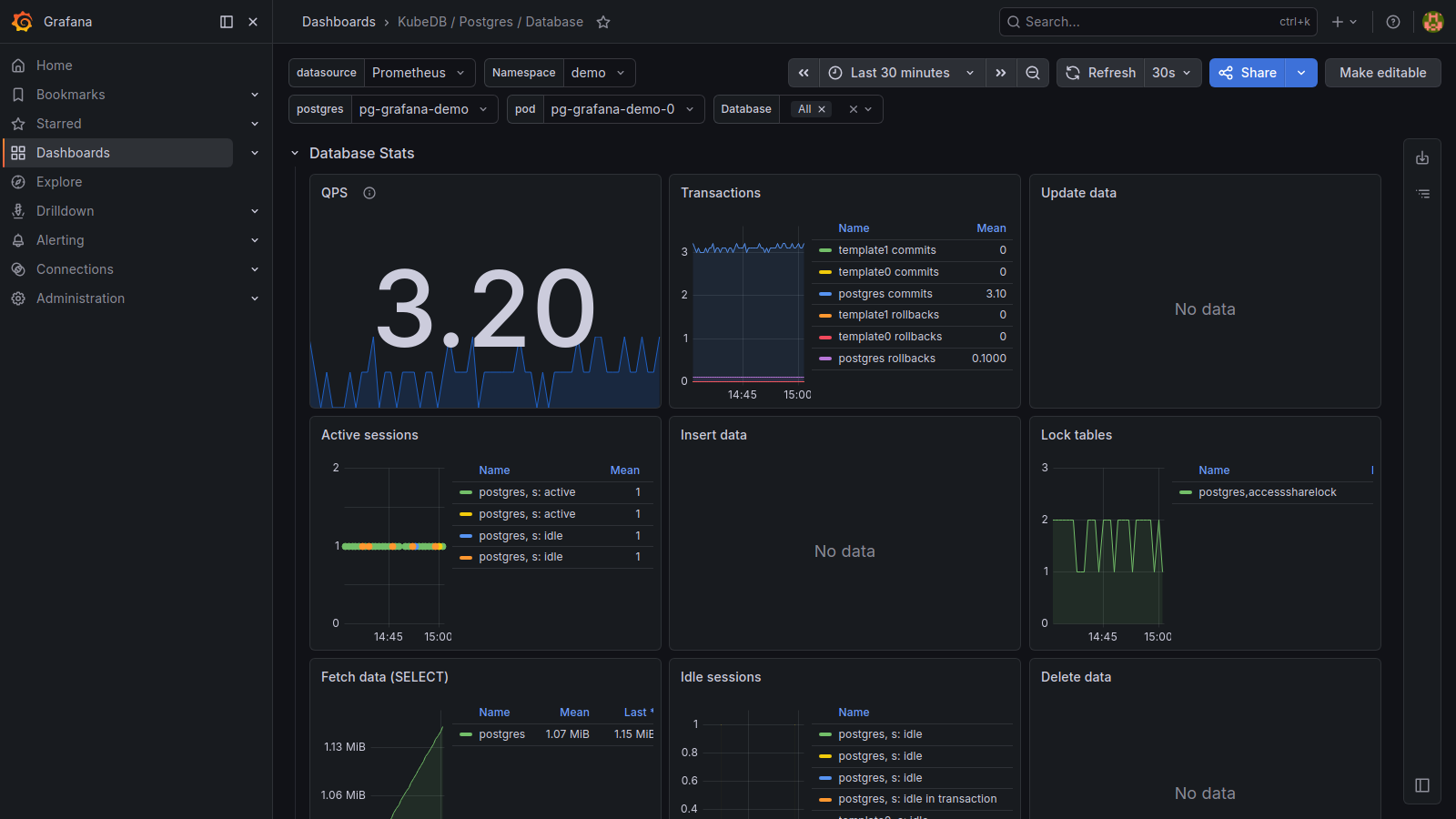
| KubeDB / Postgres / Database | Database-level metrics: QPS, transactions, cache hit rate, sessions, locks |
Step 8: Explore the Dashboard
After opening a dashboard, you will see dropdown filters at the top. These control which data is shown across all panels — change them to focus on a specific instance or database without editing any queries.
| Variable | Applies to | What to select |
|---|---|---|
| namespace | All dashboards | Namespace where your Postgres is deployed (e.g., demo) |
| app | All dashboards | Name of your Postgres instance (e.g., pg-grafana-demo) |
| pod | Pod, Database dashboards | A specific pod, or All to see aggregated view |
| datname | Database dashboard only | A specific database inside Postgres, or All |
Once you set these, all panels update automatically. Below is what each dashboard shows:
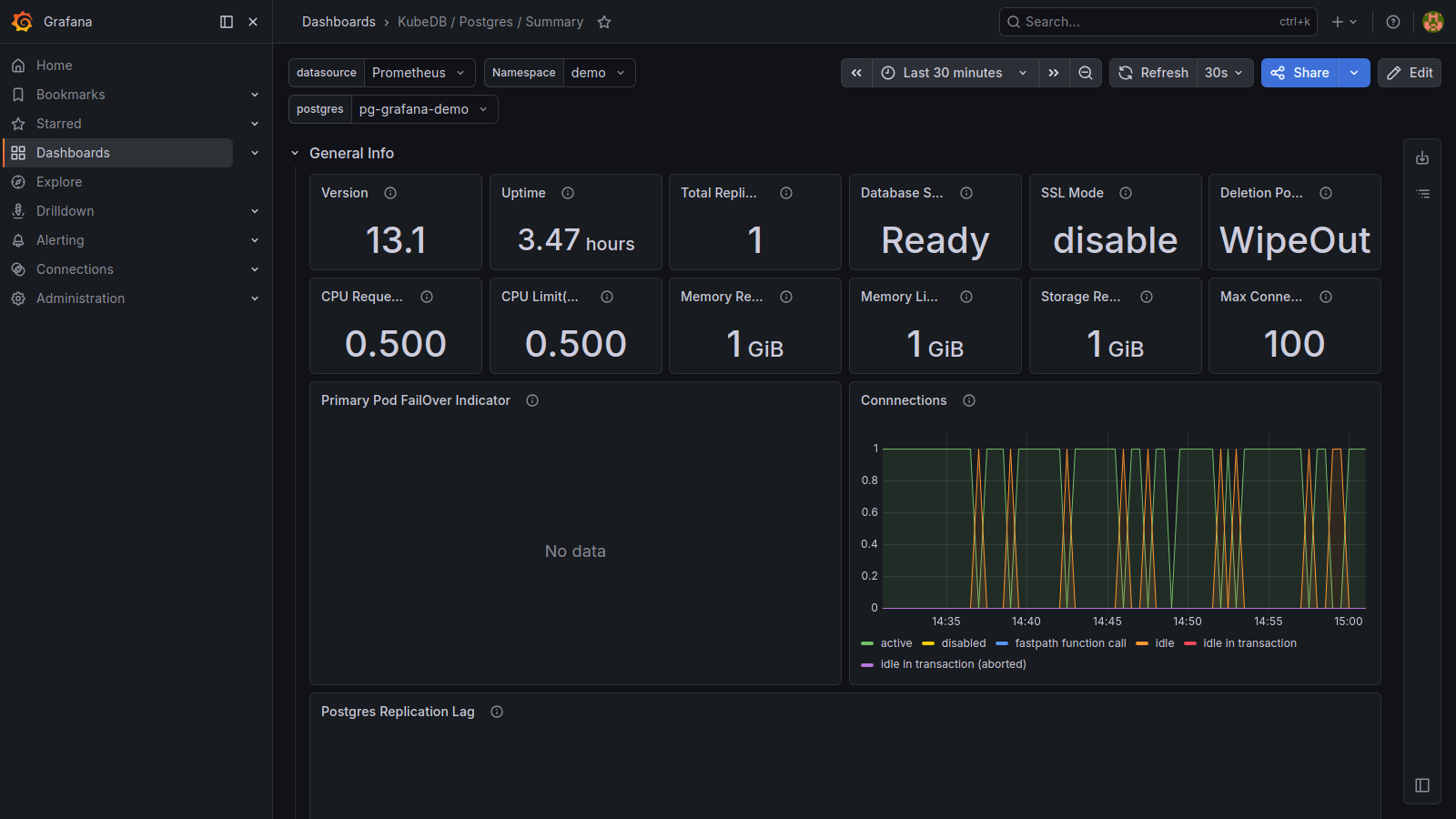
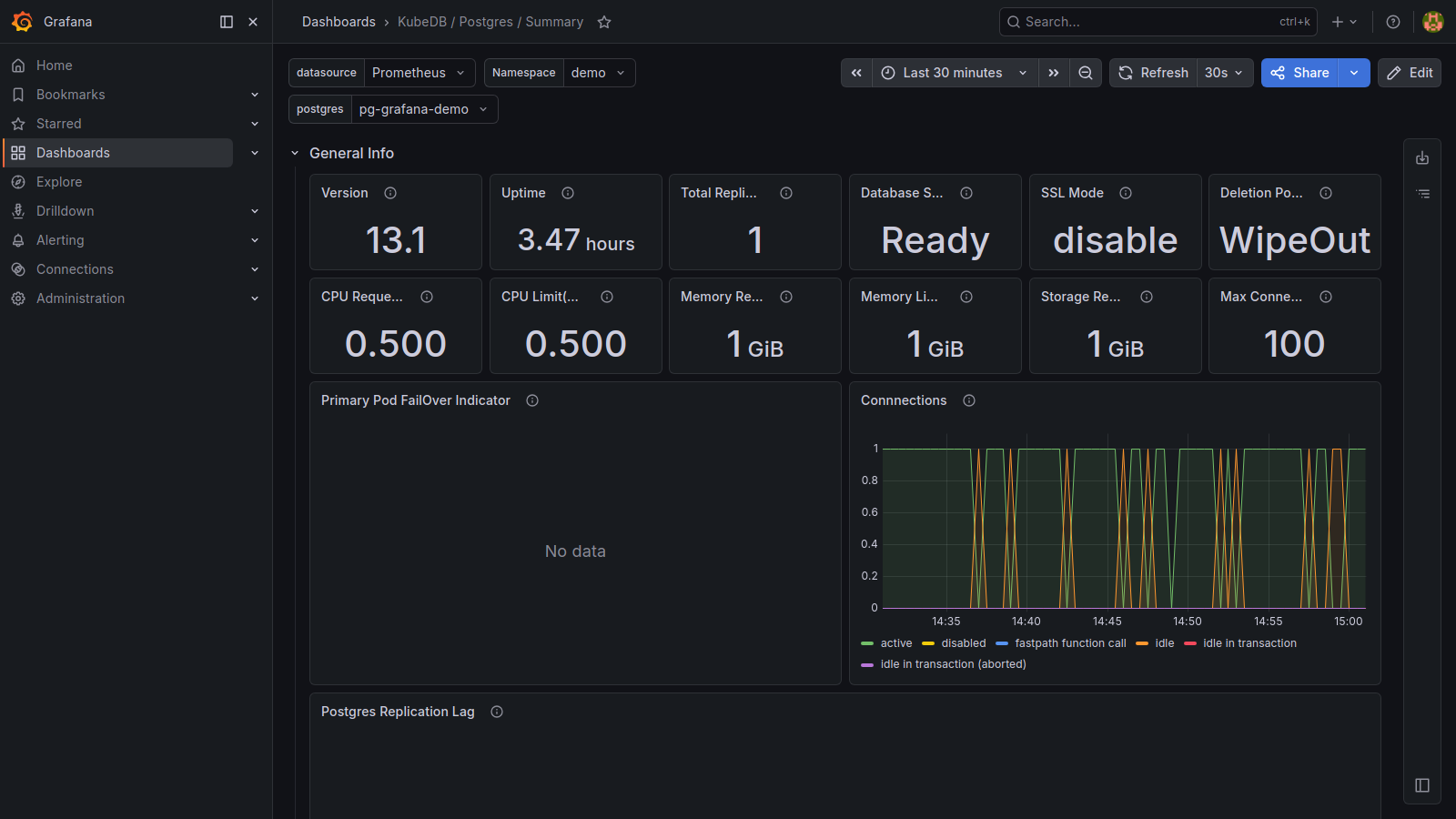
KubeDB / Postgres / Summary — start here for a health overview
- General Info — version, uptime, total replicas, database status, SSL mode, deletion policy
- Connections — current active connections
- Postgres Replication Lag — replication lag for standby replicas (relevant for HA setups)
- CPU / Memory / Storage Usage — resource consumption vs. requests and limits
- Network — receive and transmit bandwidth
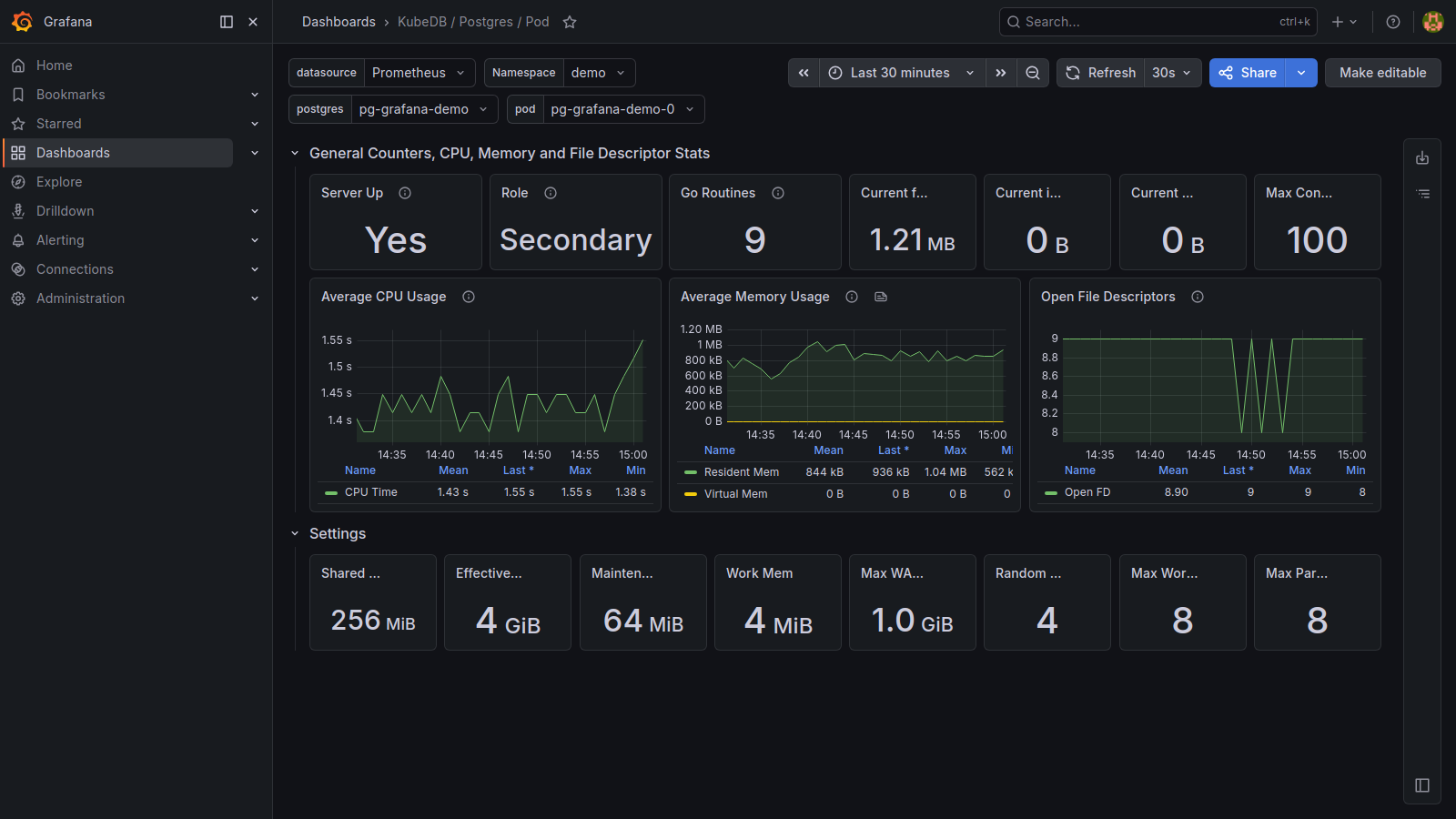
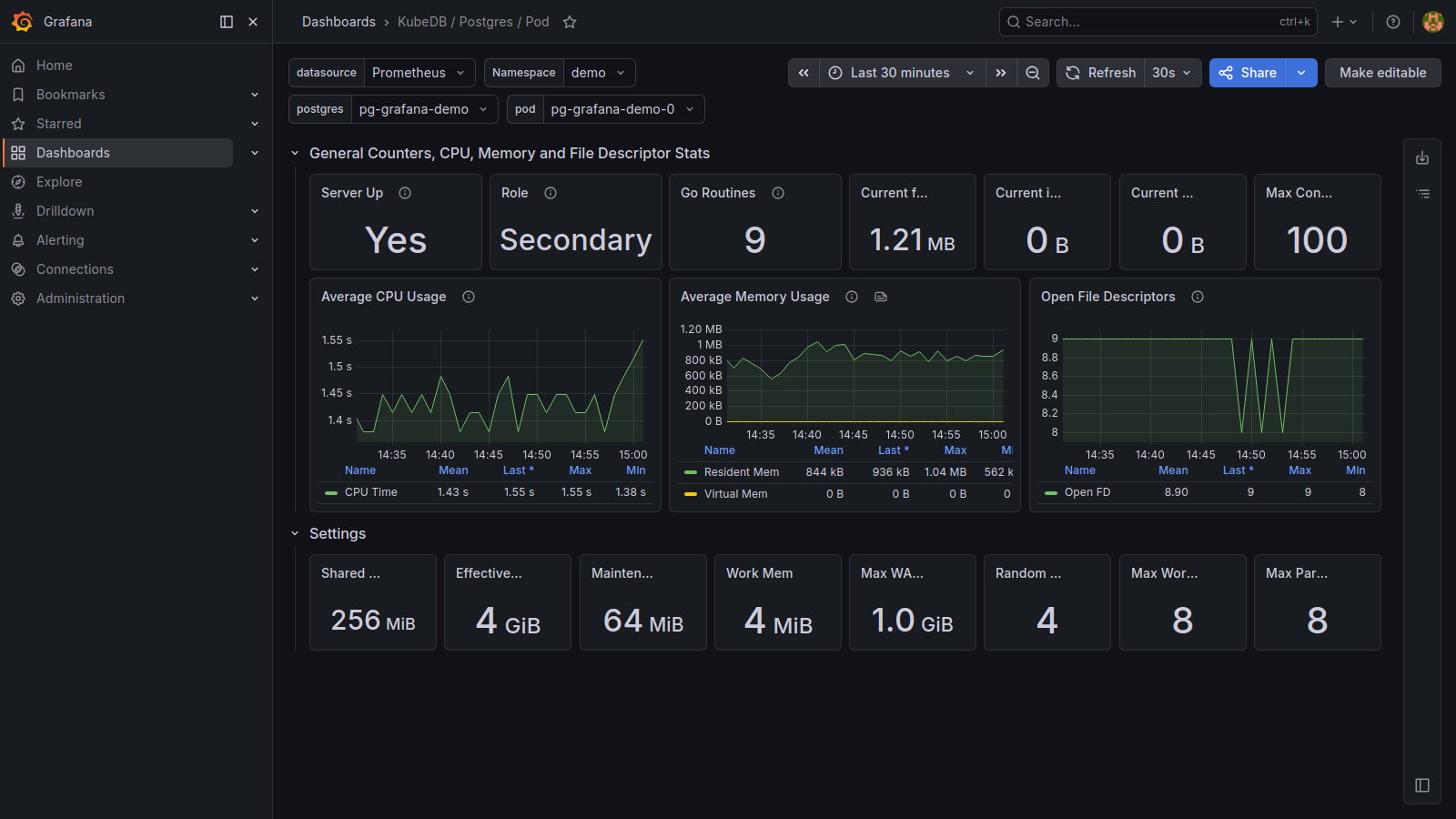
KubeDB / Postgres / Pod — drill into a specific pod
- Server Up / Role — whether the pod is alive and whether it is the primary or a replica
- Max Connections — connection limit configured for this pod
- CPU / Memory Usage — per-pod resource usage over time
- Settings — active runtime config: shared buffers, effective cache, work mem, max WAL size
KubeDB / Postgres / Database — drill into a specific database
- QPS — queries per second hitting this database
- Transactions — commits and rollbacks over time
- Cache Hit Rate — percentage of reads served from shared buffers; aim for > 99%
- Active / Idle Sessions — how many connections are executing vs. waiting
- Lock Tables — tables with active locks (high counts can indicate contention)
- Conflicts / Deadlocks — events that abort transactions; spikes indicate application issues
- Rows — insert, update, delete, fetch, and return activity per second
Cleaning up
# Remove the PostgreSQL instance
kubectl delete postgres -n demo pg-grafana-demo

# Remove namespaces
kubectl delete ns demo

# Uninstall monitoring stack (optional)
helm uninstall prometheus -n monitoring
helm uninstall panopticon -n kubeops
kubectl delete ns monitoring
kubectl delete ns kubeops
Next Steps
- Monitor your PostgreSQL database with KubeDB using built-in Prometheus.
- Monitor your PostgreSQL database with KubeDB using Prometheus Operator.
- Want to hack on KubeDB? Check our contribution guidelines.